
This Guide is of course for beginner's who want to know that how they can enable USB Debugging Mode in their respective Android Smartphone from Gingerbread 2.3 to Latest Version of Android ,i.e., Lollipop 5.0 . Here is the most easiest i can say ,Guide to help you in this matter.
If You want to know that What is USB Debugging and what is its use the this post is for you : Beginner's Post : What is USB Debugging Mode in Android and Its Uses
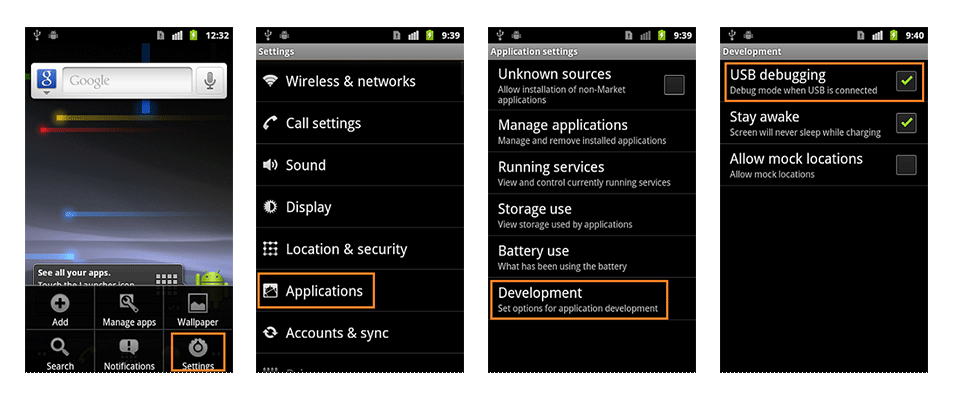
1. Android Gingerbread 2.0 - 2.3
Goto Settings > Applications > Development > USB Debugging.
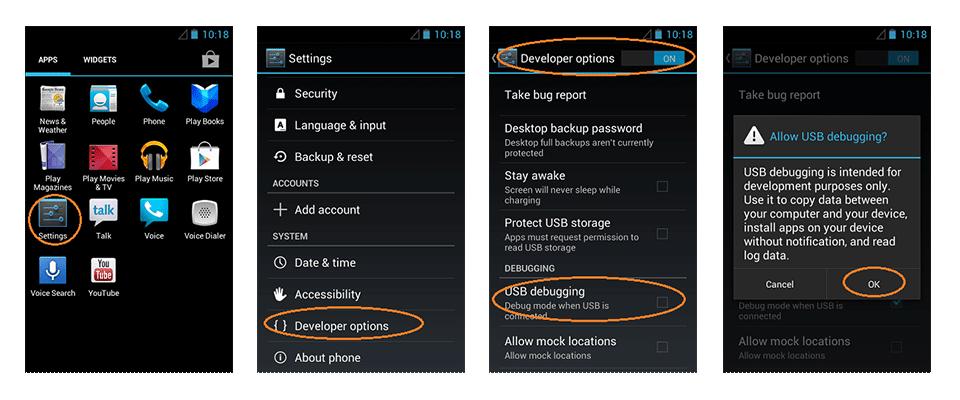
2. Android Ice Creame Sandwich 3.0 - 4.1
Goto Settings > Developer Options > USB Debugging.
Like Us and Help to reach a new milestone :)
3. Android Jelly Bean 4.2 and higher + Android Kit-Kat 4.4+
In Android Jelly Bean 4.2 and higher versions, the Developer Options menu and USB Debugging option have been hidden.
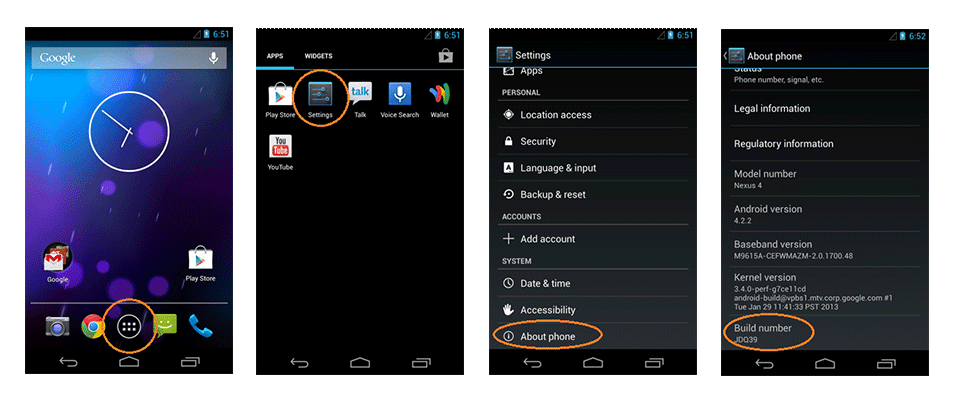
First you need to enable the Developer Options Menu To do so follow the below steps :-
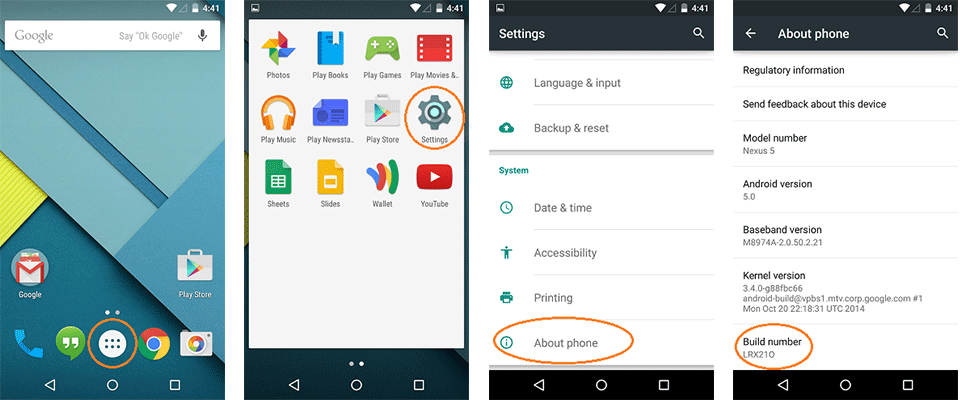
- Click Menu button to enter into App drawer.
- Go to "Settings".
- Scroll down to the bottom and tap "About phone" or "About tablet".
- Scroll down to the bottom of the "About phone" and locate the "Build Number" field.
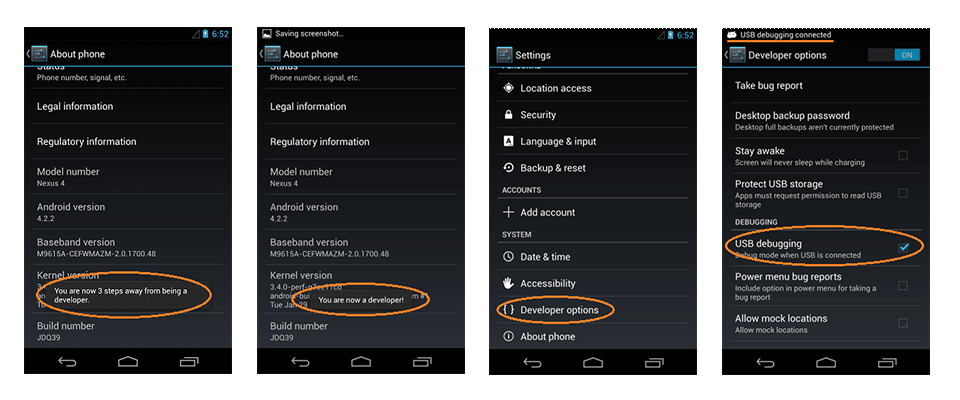
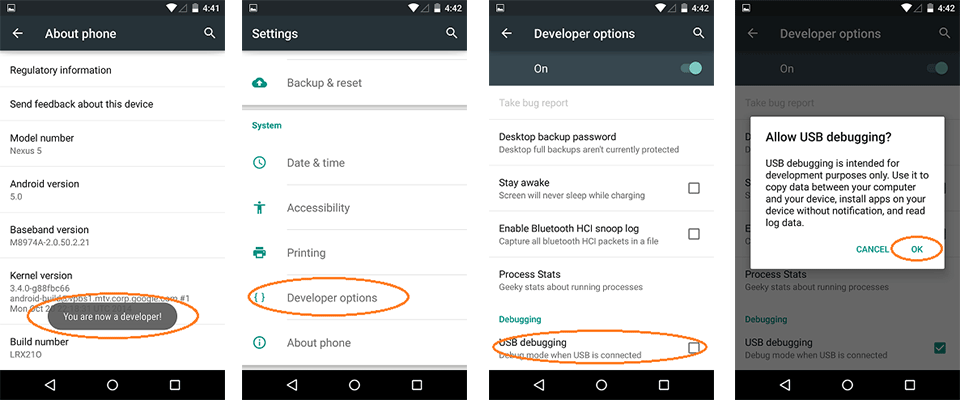
- Tap the Build number field seven times to enable Developer Options. Tap a few times and you'll see a countdown that reads "You are now 3 steps away from being a developer."
- When you are done, you'll see the message "You are now a developer!".
- Tap the Back button and you'll see the Developer options menu under System on your Settings screen.
Now you can Enable The USB Debugging Mode. - Go to Settings > Developer Options > USB Debugging. Tap once on the USB Debugging checkbox.
4. Android Lollipop 5.0 and 5.1 +
To enable USB Debugging on Android 5.0 Lollipop is like the same as you have to do with Jelly Bean
Settings > About Phone > Build number > Tap it 7 times to become developer;
Now Goto Settings > Developer Options > USB Debugging.
NOTE : USB Debugging should only be enabled only when you need it otherwise it will be opened and when you want to connect the USB Storage or other options it will also gets connected. Leaving it enabled all the time is kind of a security risk for that this mode grants you high-level access to your device. Say if you connect your Android phone to a USB charging port in a public location, the port could use the USB access to your phone to access data on your phone or install malware. This could happen when and only when USB debugging mode is enabled.
Like Us and Help to reach a new milestone :)
To disable USB Debugging and other developer options when you don't need them, slide the switch at the top of the screen to OFF.
Hope this guide helped you if you have any problem then feel free to contact us anytime :)


Hope this guide helped you if you have any problem then feel free to contact us anytime :)
Make sure Uh bookmarked us by pressing Ctrl + D
No comments:
Post a Comment