Wednesday, 21 January 2015

Add Micromax Yu Yureka Automatically in Cart for The Sale On 5th March 2015


On Previous Sale many people got nothing in the sale as the pieces are low and peoples are much therefore many returned from amazon unhappily so now they have a second chance to grab their Yu Yureka as Amazon will conduct the 2nd Flash Sale Of it on 22nd January Thursday at 2 PM

See Full Specifications and its Review Here : Micromax Yu Yureka Launched With Cyanogen OS 11

Steps To add Micromax Yu Yureka To Cart Automatically :
Method 1 :
  1. Goto Amazon's Homepage and Sign Up / Sign In There.
  2. Make Sure you are already subscribed to Yu Yureka's Page in order to enter in the sale if not then visit the registration link and subscribe now : Click here

Method 2 :
  1. Download Buyhatke addon for Google Chrome (Don't use Mozilla Firefox) - Click here
  2. Goto the link and then Download the addon and let it install.

    Like Us and Help to reach a new milestone :)
  3. After The Installation goto Amazon's Homepage and Sign up or sign in to your account.
  4. Make Sure you are already subscribed to Yu Yureka's Page in order to enter in the sale if not then visit the registration link and subscribe now : Click here
    Now Amazon's Homepage will open and you can see a small popup of Buyhatke addon in the bottom right corner of the browser. If the pop up does't come then Click here

  5. Now put a tick mark on the checkbox and click on "Save Settings".

  6. Now a popup will appear on the screen Click on "OK"

  7. Now On 22nd January login to Amazon before 2 pm and visit this page : Click here (Product Page)
  8. If the Product Page link doesn't open then visit Yu Yureka's Main Page
  9. At 1:58 keep reloading this link : http://goo.gl/eS8azp here only the Add to Cart Button Will Appear.

  10. As the time goes at 2 o'clock You will see that your cart is filled with Micromax Yu Yureka.
  11. Quickly make the checkout and enjoy.
Registration Link : http://www.amazon.in/gp/gss/detail/15004741
Product Page Link : http:///www.amazon.in/gp/product/B00R659KZ8

Terms :
  • Your account must be subscribed for the sale.
  • Make sure your internet connection is working fine.
  • Your Browser must be opened at the time of sale ,i.e., 2 PM and the sale page must be opened.
  • Make sure you successfully subscribed at buyhatke to add yureka in your Cart.

Make sure Uh bookmarked us by pressing Ctrl + D


Unknown Web Developer

Tuesday, 20 January 2015

Tutorial : How To Unroot Your Android Smartphone Easily Without PC


After Rooting Your Android Smartphone You may want to Unroot . Sometimes when people brought their Mobile Phone to Service Center they refuse to fix the Mobile which is in Warrenty Period as you have rooted it ,So simply unroot and Just Enjoy Android Services.

This Simple guide will help you to unroot your Android Device . Just Follow this Guide :-
Method No.1 : Unroot With SuperSU app
This method proves the best and easy for all android devices that were rooted without installing custom recovery.
  1. First, download and install SuperSU app from the link given below ,if you don't have it.
  2. Launch SuperSU app.

  3. Go to Settings and tap on ‘Full unroot’

  4. It will confirm you just tap continue. After successful, Unroot superuserwill close automatically

  5. Restart your device
  6. Uninstall SuperSU and you are fully unrooted.
Like Us and Help to reach a new milestone :)

Method No.2 : Use ES File Explorer
If above method don't works for you then you can follow these steps but i recommend you to Use SuperSU app only to unroot your device.

1. Download and Install ES File Explorer app but don't move it to your SD Card.
2. Open the app and tap on the menu button.
3. Now tap on ‘Tools’ and select ‘Root Explorer’ to turn it on.
    Superuser will ask you to grant privilege or root privileges to the app.

    
4. Now go back to the main screen of the app and select ‘/’ in the top corner of the screen.
5. Go to system -> binFind the busybox and su file and delete them. If you can’t find any of them, just skip to       the next step.

    
6. Go back to system folder then open ‘xbin’ folder and delete the busybox and su file there (if you found any).
7. Now go back to the system folder again and open ‘app’ folder and then delete the supeuser.apk file located in the folder. That’s all.

IMPORTANT NOTE : PLEASE INSTALL ROOT CHECKER FROM LINK GIVEN BELOW TO VERIFY THAT YOUR PHONE IS COMPLETELY UNROOTED.

DOWNLOAD LINKS :-

Make sure Uh bookmarked us by pressing Ctrl + D


Unknown Web Developer

Tutorial : Easiest Way to Root or Unroot any Android Device with Kingo Root Software


Many of the Android Users face difficulties in Rooting their android Smartphones they search whole google for it but if you have a PC also then its easy as a click with a software known as Kingo Root Software it can root any Device (Android) right From Gingerbread 2.0+ to Android Lollipop which is the latest version of android up to the date.
Its a  small size software of just 14 mb which doesn't require any extra addons but its good to have an  internet connection to root your phone. This is the best app i seen ever and i personally rooted many Phones with this app ,some of the phones i rooted with it are Karbonn A11 Star got rooted in about 6-8 minutes and Nexus 6 got rooted in 5-6 minutes. I tested this app and now i can prefer it to all my techolics.
If You want to know that What is USB Debugging and what is its use the this post is for you : Beginner's Post : What is USB Debugging Mode in Android and Its Uses
This guide will help you to get your phone Rooted or Unrooted in the easiest way / method ever :v

Highlights of Kingo Android ROOT ?
  • Faster performance.
  • Easy to use
  • Preserve battery life.
  • Access root-only apps.
  • Remove carrier bloatware.
  • Customizable appearance.
  • Good look or UI.
  • Attain admin level permission.
IMPORTANT: Before you proceed, please do backup your important data first.

Preparations :
  1. Switch On your Mobile Phone.
  2. At least 50% battery level.
  3. USB Cable (the original one recommended).
  4. Enable USB Debugging on your device.
  5. Internet connection is required.

    Like Us and Help to reach a new milestone :)
How To Root Your Android with Kingo Root :-
  1. Firstly Go and Download Kingo Root app From This Link ( Click Here ) If you don't have it.
  2. Now Right Click and Run The Setup As Administrator and let it be Installed.
  3. In the Mean Time you can enable USB Debugging Mode in your Android Device.
    If you are Not Sure about this Step then Read this Post : How To Enable USB Debugging mode in Android.
  4. Now Open Kingo Root and Connect your USB Cable with your Mobile in On State. Follow Kingo Root and Continue.


  5. Kingo Root will now try to find your device and get Connected to it. Sometimes it got stuck on Connecting so try to remove the data cable and plug it again or close Kingo Root Software and Restart it.
    Ringo Will help you to get started so don't Worry about it.

     
  6. Click On Ok and Go further Now In your Mobile a Confirmation Popup will appears.
    Tick mark on the checkbox and allow it by clicking on OK Button as shown in the Screenshot below.


  7. Now Kingo Root will show your Device Status as it is Rooted or Not. If you want to Root it then just Simply Click on Root and Wait for some minutes and please do not shut down your PC Mean while and keep your phone untouched.


  8. This Process may take time it depends upon your Device i tested this App with Karbonn A11 Star and it got Rooted in about 7-8 Minutes or even less. After successful root your device will restart and Ringo Root will show "Root Succeeded" message.


  9. Its All Guys Click On Finish and Afterwards if you want to unroot then do the same but click on Unroot button.

I Hope This Simple and easy guide helped you please share it and help us do better than this. If you face any problem then feel free to comment or contact us with your problems / questions we are always here to help you :)
Visit Click here Download Click here

Make sure Uh bookmarked us by pressing Ctrl + D


Unknown Web Developer

Tutorial : How To Enable USB Debugging Mode on Android Gingerbread - Lollipop


This Guide is of course for beginner's who want to know that how they can enable USB Debugging Mode in their respective Android Smartphone from Gingerbread 2.3 to Latest Version of Android ,i.e., Lollipop 5.0 . Here is the most easiest i can say ,Guide to help you in this matter.

If You want to know that What is USB Debugging and what is its use the this post is for you : Beginner's Post : What is USB Debugging Mode in Android and Its Uses

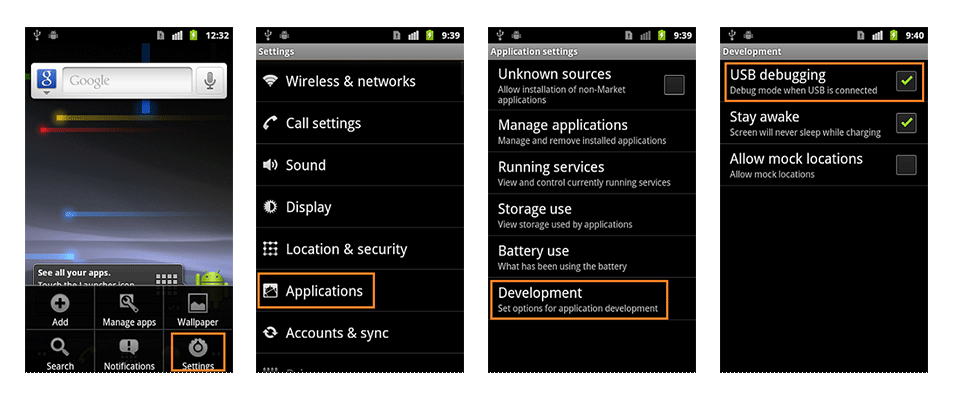
1. Android Gingerbread 2.0 - 2.3

Goto Settings > Applications > Development > USB Debugging.
How to enable usb debugging mode on android 2.0?

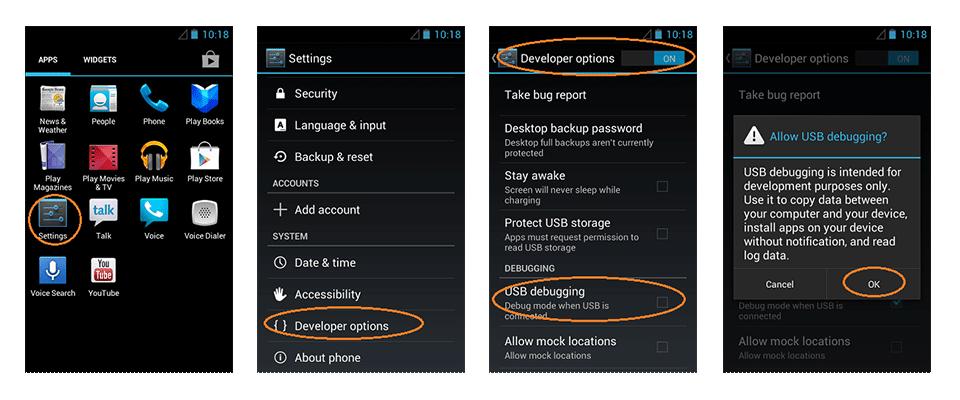
2. Android Ice Creame Sandwich 3.0 - 4.1 

Goto Settings > Developer Options > USB Debugging.
How to enable usb debugging mode on android 3.0?

Like Us and Help to reach a new milestone :)

3. Android Jelly Bean 4.2 and higher + Android Kit-Kat 4.4+

In Android Jelly Bean 4.2 and higher versions, the Developer Options menu and USB Debugging option have been hidden. 
First you need to enable the Developer Options Menu To do so follow the below steps :-
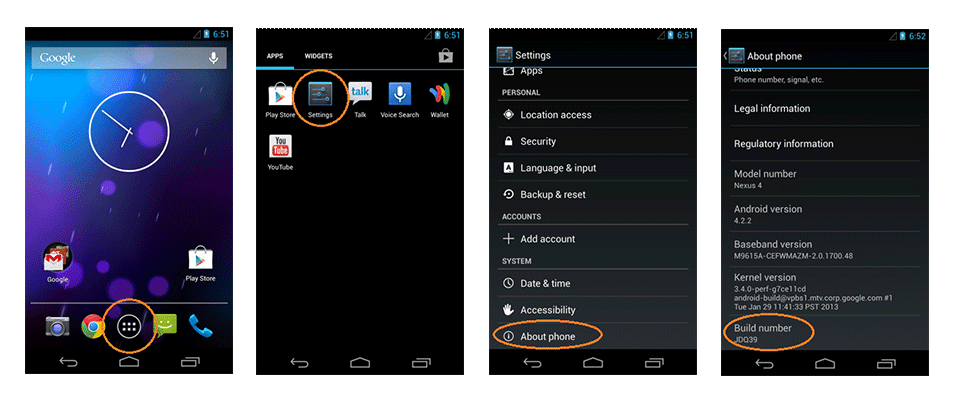
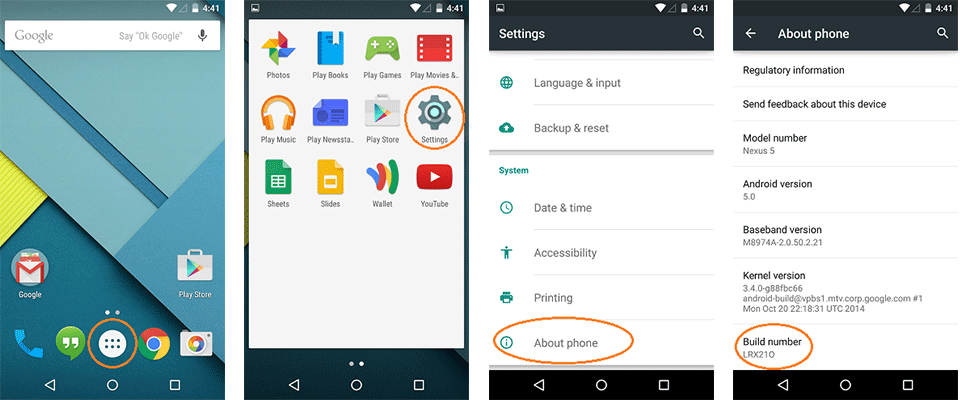
  1. Click Menu button to enter into App drawer.
  2. Go to "Settings".
  3. Scroll down to the bottom and tap "About phone" or "About tablet".
  4. Scroll down to the bottom of the "About phone" and locate the "Build Number" field.
  5. How to enable usb debugging mode on android 4.2.x and higher?
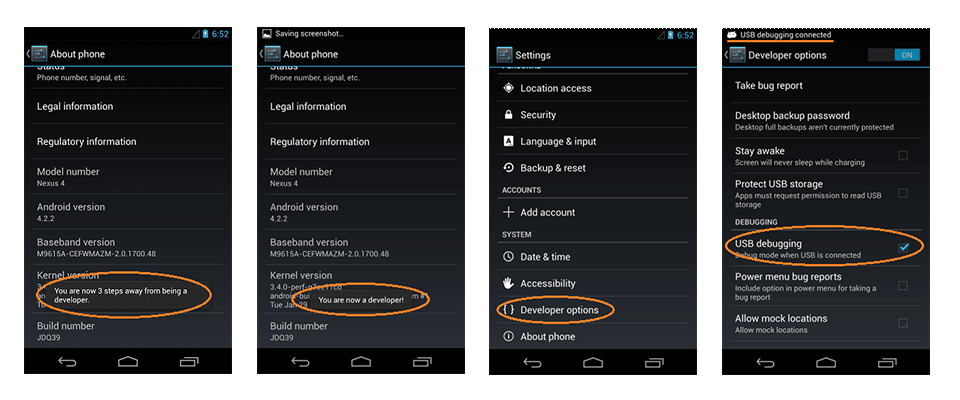
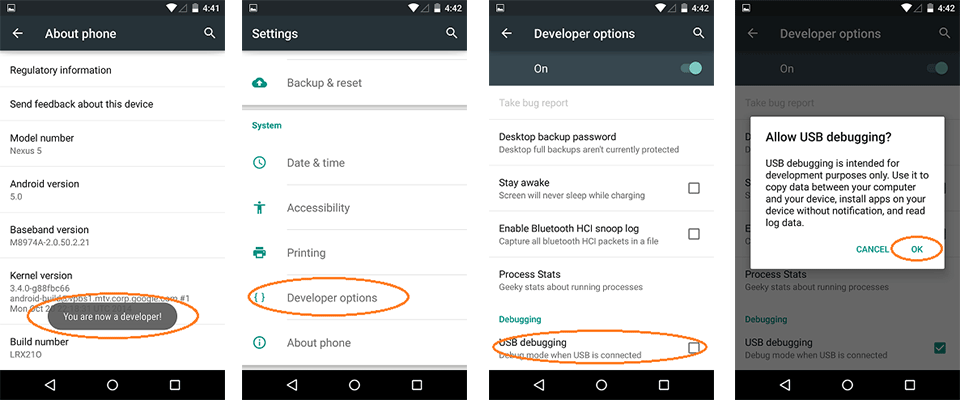
  6. Tap the Build number field seven times to enable Developer Options. Tap a few times and you'll see a countdown that reads "You are now 3 steps away from being a developer."
  7. When you are done, you'll see the message "You are now a developer!".
  8. Tap the Back button and you'll see the Developer options menu under System on your Settings screen.
    Now you can Enable The USB Debugging Mode.
  9. Go to Settings > Developer Options > USB Debugging. Tap once on the USB Debugging checkbox.
  10. How to enable usb debugging mode on android 4.2.x and higher?

4. Android Lollipop 5.0 and 5.1 +

To enable USB Debugging on Android 5.0 Lollipop is like the same as you have to do with Jelly Bean
Settings > About Phone > Build number > Tap it 7 times to become developer;
How to enable usb debugging mode on android 4.2.x and higher?
Now Goto Settings > Developer Options > USB Debugging.
How to enable usb debugging mode on android 4.2.x and higher? 
NOTE : USB Debugging should only be enabled only when you need it otherwise it will be opened and when you want to connect the USB Storage or other options it will also gets connected. Leaving it enabled all the time is kind of a security risk for that this mode grants you high-level access to your device. Say if you connect your Android phone to a USB charging port in a public location, the port could use the USB access to your phone to access data on your phone or install malware. This could happen when and only when USB debugging mode is enabled.

Like Us and Help to reach a new milestone :)
To disable USB Debugging and other developer options when you don't need them, slide the switch at the top of the screen to OFF.

Hope this guide helped you if you have any problem then feel free to contact us anytime :)

Make sure Uh bookmarked us by pressing Ctrl + D


Unknown Web Developer

Beginner's Post : What is USB Debugging Mode in Android and Its Uses


If you don't know what is USB Debugging or you want to know what is it then this post is for you all. This is a beginners post for those who didn't know about it . We have posted more on this Topic go and have a look on that also. 


What is USB Debugging Mode?

USB Debugging Mode is one of the most important thing you should know about it if you are an Android User. The main function of this mode is to Develop a connection between an Android device and a computer with Android SDK (Software Development Kit). As the name Suggests USB its simple that your phone will be connected with USB Cable with your PC / Laptop.

USB Debugging Mode, in some versions of Android, is also called Developer Mode. Then it is relatively easy for you to understand that this USB Debugging Mode establishes a direct connection between an Android Device and a computer and readies it for deeper-level actions. By this you can Root your phone ,Change / Upgrade Your Kernal Version or you can install Custom ROMs and many more thing a developer does . But to use this feature its not important that you should be a developer with huge knowledge but atleast little is required .
Like Us and Help to reach a new milestone :)

What is USB Debugging for?

USB Debugging Mode is important and good to know. But why? What capabilities that it carries make this mode so important?

Now you have a little knowledge of USB Debugging Mode that grants you a level of access to your device or you can say a super access to you.
What kind of access, you may ask. This level of access that USB Debugging Mode grants is important when you need system-level clearance, such as when coding a new app. This mode, also called Developer Mode, allows newly programmed apps to be copied via USB to the device for testing. Depending on the OS version and installed utilities, the mode must be turned on to let developers read internal logs. Users use it to root or unroot their mobile phones or to install / upgrade their phones Software or others.

Also See : Steps to Root and Unroot Your Xiaomi Redmi Note 3G and 4G | Easiest Method

It not only does this much , many more things it can do. There are a few non-development-related benefits from this new level of access that can give you much more freedom of control over you device. 
For example, with Android SDK, you gain direct access to your phone through your computer and that allows you to do things or run terminal commands with ADB. These terminal commands can help you restore a bricked phone. So this mode is a useful tool for any adventurous Android owner. 
Of course, the background knowledge is always complicated for those non-experts. This is exactly what Android Update exists for. Android Update incorporated all these complicated features and tools to make it easy for you. 

Trending : Full Lists of Upcoming Smartphones of 2015 | Reviews ,Specifications and Price 

Now i think that you are familiar with USB Debugging as what is it . This Post has been written by me because many users have asked that What is USB Debugging ? or What is the Use of it ? So i decided to write on it.

Make sure Uh bookmarked us by pressing Ctrl + D


Unknown Web Developer

Sunday, 4 January 2015

Steps to Root and Unroot Your Xiaomi Redmi Note 3G and 4G | Easiest Method


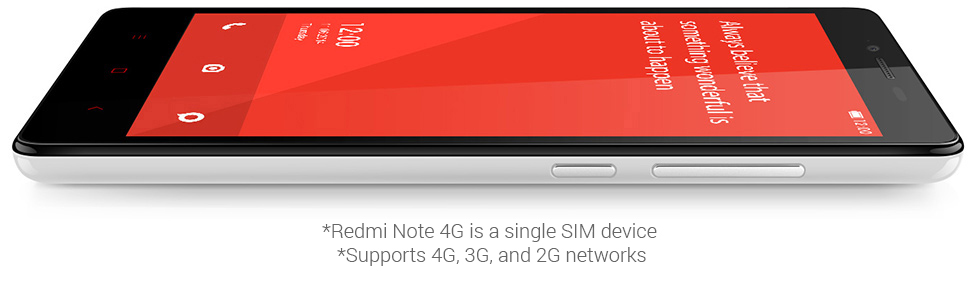
Xiaomi has recently launched his Xiaomi Redmi Note 4G in India recently and got full units sold out in just 6 seconds on Flipkart. Many Users brought it and may want to root their device or may want to unroot it so this post is dedicated to them as we are posting the easiest method to root and unroot your Xiaomi RedMi Note 3G / 4G.

Like Us and Help to reach a new milestone :)


Something extra for Redmi Note 4G Users that they can claim their free Micro Sim Card Tray and Screen Protector from Mi's Official Website so if you are a user of Note 4G and didn't claimed it so go now and claim your gift : Click here


Who already claimed it can ignore this :p


Steps to Root Redmi Note :

  1. Download RedMiNote_rootonly_rel.zip file and save it in your SD Card (Don't Extract it).
    You can rename it if you want to "root.zip" to make yourself easy to find it in SD.
  2. Open the Updater app on your Note , In Menu select "select update package" option.
  3. Then Select the .zip file "root.zip" , if you renamed it otherwise search it by its default name ,after selection click update option.
  4. Now the phone will ask you to reboot , So select reboot option.
  5. After reboot Goto Xiaomi Security app > Permissions > Root Permission > Turn it On.
  6. Now you have gained the Root Permission Now .
These methods are tested by Techolics Team on Xiaomi Redmi Note 3G and may work On Xiaomi Redmi Note 4G."Try it On Your Own Risk".


Steps to Unroot Redmi Note :
  1. Goto Xiaomi Security app > Permissions > Root Permission > Turn it Off.
  2. Download the UNROOT_rel.zip file and save it in your SD Card (Don't Extract it).
    You can rename it if you want to "unroot.zip" to make yourself easy to find it in SD.
  3. Open the Updater app on your Note , In Menu select "select update package" option.
  4. Then Select the .zip file "unroot.zip" , if you renamed it otherwise search it by its default name ,after selection click update option.
  5. Now the phone will ask you to reboot , So select reboot option.
  6. Now you have Successfully Unrooted Your Redmi Note.

 These methods are tested by Techolics Team on Xiaomi Redmi Note 3G and may work On Xiaomi Redmi Note 4G."Try it On Your Own Risk".

Sum apps also comes to root your smartphones but i would not recommend you to get into it follow above steps and these download files are original and taken from Xiaomi's India Official Site ,So be sure about it :D

root.zip Download unroot.zip Download

Make sure Uh bookmarked us by pressing Ctrl + D


Unknown Web Developer

Saturday, 3 January 2015

Xiaomi Redmi 1s and Redmi Note 4G Will Go On Sale On 6th January 2015


Previously on 30th December Xiaomi Redmi Note 4G Goes on Sale of about 40,000 Units of it and got sold out in just 6 seconds. As Xiaomi is celebrating theirs 1 Million Mi Phones Sold in India so they this time thought to run two sales on a single day ,i.e., Redmi Note 4G and Redmi 1s Flash Sale. Registrations are opened for it and will be opened till 5th January and the sale is on 6th January at 2 PM For Xiaomi Redmi Note 4G and on 5 PM for Xiaomi Redmi 1s.


At same place you can register yourself for both smartphones 
,i.e., Redmi Note 4G and Redmi 1s and after it you can buy these on 6th Jan 2015.

Recommended For You Free Micro Sim Card Tray and Screen Protector for Xiaomi Redmi Note 4G Users
Previously Xiaomi Redmi 1s was on sale on 23rd December as Delhi High Court Lifted the Partial Ban from Xiaomi India.


Note 4G @ Flipkart Redmi 1s @ Flipkart


Unknown Web Developer

Free Micro Sim Card Tray and Screen Protector for Xiaomi Redmi Note 4G Users


Good News For all Those who buyed Xiaomi Note 4G from Flipkart on 30th December ,next sale will be on 6th Jan 2pm along with Redmi 1s Sale at 5pm .

Like Us and Help to reach a new milestone :)

So come on Xiaomi Redmi Note 4G Users didn't got the Micro Sim Tray and Screen-Protector with their phones ,Right ? So Xiaomi is giving Free Micro Sim Tray and Screen-Protector to all Redmi Note 4G Buyers but you can not order two or more pieces as they will ask your IMEI No. To Confirm that you are a certified buyer of Xiaomi Note 4G and all IMEI No.s will get only one piece each.

It will be delivered right at your doorstep without any charges !
The Redmi 1s Sale that was held long back on 23rd December doesn't include these freebies and Xiaomi will not run this offer for them although they didn't availed this offer. This was a really bad thing happened for Redmi 1s users :(


Steps To Get Your Freebies :
  1. Visit Xiaomi's India Official Webpage : Click here
  2. Fill Up the Promotional Form Correctly.
  3. Enter Your IMEI No. in the "Redmi Note 4GIMEI Number" Field
    Dial *#06# To know your IMEI No.
  4. Click on Submit and if you got verified then you will soon receive an email from MI India telling about the Offer.
  5. Done !!

Success Message you will get after the submission
   
Unknown Web Developer